Canvas navigation
| Action | Control |
|---|---|
| Pan | Hold Space and drag — works no matter what tool or selection is active |
| Zoom | Scroll |
| Zoom in / out | Ctrl + + / Ctrl + - (or just + / -), or View → Zoom In / Zoom Out |
| Zoom to fit everything | Shift + 1 — includes the canvas-size rectangle, if you've set one |
| Zoom to the selection | Shift + 2 |
| Actual size | Ctrl + 0 — roughly real size on screen (96 pixels per inch). Screens vary, so check measurements on a printout, not against the screen |
Filling the browser window
The Fill browser window button at the top right of the editor makes it fill the whole browser tab, with the site's header and footer out of the way, the same layout as fullscreen. Unlike fullscreen, the browser's tabs and your other windows stay where they are, so you can switch to a reference or another tool and come straight back. Click the button again to go back. The editor remembers your choice, so it opens filled next time too.
Searching for a command
Press S (not while typing in a text field) to search every menu command, tool and Properties-panel action that can run right now. Type a few letters — they don't need to be next to each other, so rc finds Round corners — and the matching letters light up. Each result shows the menu or panel it lives in and its shortcut, if it has one. Pick a result with the arrow keys and Enter, or click it; Escape closes the search. With nothing typed, the commands you ran last are listed first. Some commands only show up once something is selected.
Rulers, grid, and origin
Toggle Show Rulers, Show Grid, and Show Origin from the View menu. The origin marker is a small crosshair at the document's (0, 0) coordinate — useful for lining up multiple pieces to a shared reference point.
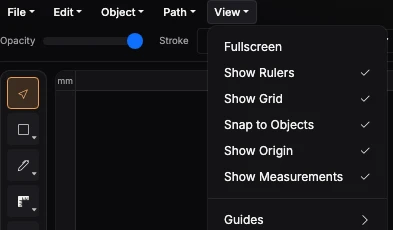
Fig. 1 — The View menu open, showing Fullscreen, Show Rulers, Show Grid, Snap to Objects, Show Origin, and Show Measurements all checked on by default, plus the Guides submenu
Snapping
Snap to Objects (View menu) snaps a shape you're moving or resizing to other shapes' edges and centers. Need to ignore it just once? Hold Alt while dragging — that overrides the setting for that drag only, without having to turn it off and back on.
Guides
Under View → Guides:
| Option | What it does |
|---|---|
| Show Guides | Also turns snapping to guides on or off |
| Canvas Size… | Shows a fixed-size guide rectangle, useful when drafting to a specific target size |
| Add Guide… | Adds a single guide line |
| Clear Guides | Removes every guide line at once |
Show Measurements (View menu) also controls whether measurements appear in an exported SVG — turn it off before exporting if you want a clean pattern with no annotation clutter.